
Understanding Safety Guardrails
Why GhostSync blocks suspicious syncs and how to maintain total inventory safety.
GhostSync is designed to protect your Shopify inventory from corrupted or incomplete data. Sometimes, a supplier may send a file that is truncated, missing columns, or contains unusually large changes. To prevent these files from wiping out your stock, GhostSync uses Safety Guardrails.
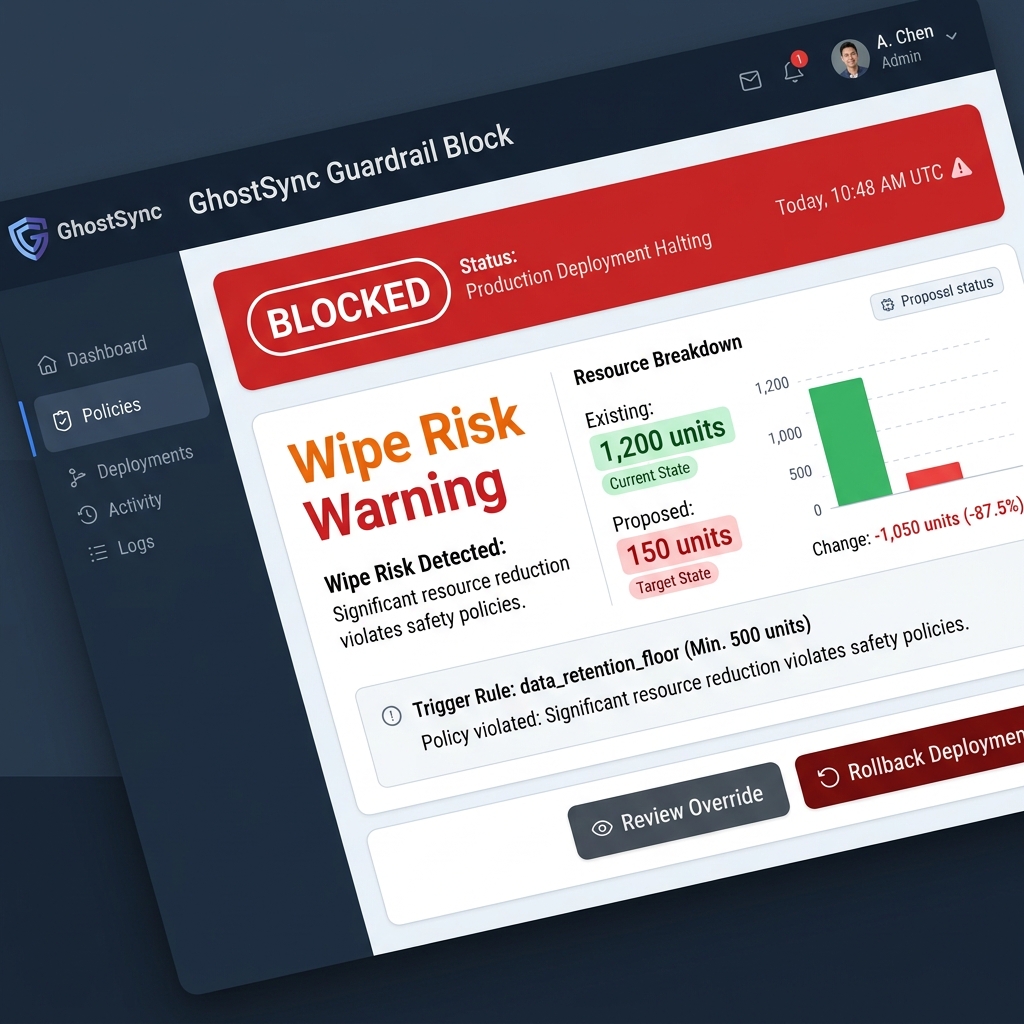
Example of a sync blocked by the Wipe Risk guardrail
Partial File Risk
Triggered when the supplier file contains significantly fewer SKUs than we expect based on your store's history.
Wipe Risk
Triggered when the proposed changes would alter a huge percentage (over 50%) of your total stock across all items.
Common Causes & Fixes
Truncated File
The file was cut off during download or sending. GhostSync prevents the missing items from being set to 0 stock.
Format Changes
The supplier changed their CSV headers or file layout. In this case, you should re-run the onboarding wizard to update your template.
How to Override a Block
If you determine that the file is correct (e.g., you know the supplier is performing a major catalog update), you can manualy approve the sync from the Dashboard.
- Go to Sync Logs in the GhostSync Dashboard.
- Find the log marked Blocked Guardrail and click to open details.
- Review the stats and confirm the data is safe to publish.
- Click Approve Override. GhostSync will re-process the file immediately, skipping the safety check.
If you are seeing persistent blocks, our support team can help you analyze the files.
Email Support